How to Set Up Automated Backup Workflows
This guide demonstrates how to create comprehensive automated backup workflows that combine scheduling, pruning, cloud sync, and notifications for a complete backup solution.
Overview
An automated backup workflow in Borgitory typically includes:
Scheduled Backups - Regular backup execution via cron
Pruning Policies - Automatic cleanup of old archives
Cloud Synchronization - Offsite backup storage
Notifications - Alerts for success/failure
Monitoring - Health checks and reporting
This guide will walk through setting up several common workflow patterns.
Workflow 1: Daily Document Backup
This workflow backs up important documents daily with cloud sync and notifications.
Step 1: Create Repository
Add Document Repository
Go to Repositories → Add Repository
Configure repository settings:
Name: Documents Backup
Path: /mnt/repos/documents
Passphrase: [secure-passphrase]
Test connection and save
Step 2: Create Pruning Policy
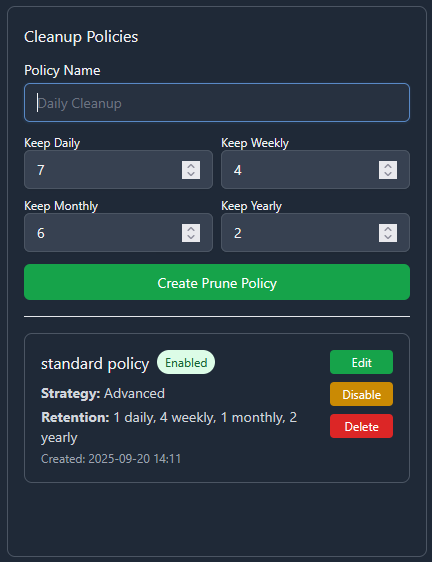
Add Prune Policy
Go to Archive Pruning
Create a new pruning policy with custom retention settings
Step 3: Configure Cloud Sync
Add S3 Configuration
Go to Cloud Sync → Add Configuration
Configure S3 settings:
Name: Documents S3 Backup
Provider: s3
Access Key ID: [your-access-key]
Secret Access Key: [your-secret-key]
Bucket Name: my-documents-backup
Region: us-east-1
Path Prefix: documents/
Test connection and save
Step 4: Set Up Notifications
Configure Pushover (see How to Set Up Pushover Notifications)
Add Pushover notification configuration
Test notification delivery
Step 5: Create Automated Schedule
Add Backup Schedule
Go to Schedules → Add Schedule
Choose your scheduling method:
Option 1: Use Predefined Schedule
Select from common scheduling options using the dropdown menu:
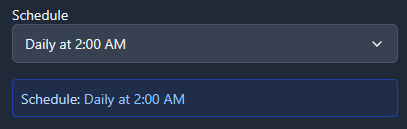
Select from predefined scheduling options for common backup frequencies
Option 2: Create Custom Cron Expression
For more specific timing requirements, choose “Custom (cron expression)” and enter your own cron pattern:
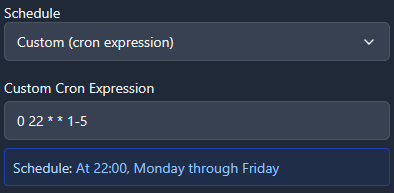
Create custom cron expressions for precise scheduling control
For detailed information about cron expression syntax and advanced scheduling options, see the APScheduler Cron Trigger documentation.
Configure complete workflow:
Name: Daily Documents Backup
Repository: Documents Backup
Source Path: /mnt/backup/sources/documents
Cron Expression: 0 2 * * *  (daily at 2 AM)
Enabled: ✓

Archive Settings:
Archive Name: documents-{now:%Y%m%d-%H%M%S}
Compression: lz4

Pruning:
Pruning Policy: Documents Prune
Run After Backup: ✓

Cloud Sync:
Cloud Configuration: Documents S3 Backup
Sync After Backup: ✓

Notifications:
Notification Config: Mobile Alerts
Notify on Success: ✓
Notify on Failure: ✓
Notify on Warning: ✓

Job Hooks:
Pre-Job Hooks: Database dump preparation (install postgresql-client via Package Manager)
Post-Job Hooks: Cleanup and health checks (install curl via Package Manager)
Save and Test
Save the schedule
Run manually to test the complete workflow
Verify each step completes successfully
Workflow 2: Multi-Source System Backup
This workflow backs up multiple system directories with different schedules and prune policies.
Repository Setup
Create separate repositories for different data types:
System Config Repository:
- Name: System Configuration
- Path: /mnt/repos/system-config
- Purpose: /etc, system configs

User Data Repository:
- Name: User Home Directories
- Path: /mnt/repos/user-data
- Purpose: /home directories

Application Data Repository:
- Name: Application Data
- Path: /mnt/repos/app-data
- Purpose: /var/lib, databases
Pruning Policies
Create different prune policies:
System Config Prune:
- Keep Daily: 30 days
- Keep Weekly: 12 weeks
- Keep Monthly: 24 months
- Keep Yearly: 5 years

User Data Prune:
- Keep Daily: 7 days
- Keep Weekly: 8 weeks
- Keep Monthly: 12 months
- Keep Yearly: 3 years

Application Data Prune:
- Keep Daily: 14 days
- Keep Weekly: 6 weeks
- Keep Monthly: 6 months
- Keep Yearly: 2 years
Schedule Configuration
Create multiple schedules with different frequencies:
System Configuration Schedule:
Name: System Config Backup
Repository: System Configuration
Source Path: /mnt/backup/sources/etc
Cron: 0 3 * * * (daily at 3 AM)
Archive Name: system-config-{now:%Y%m%d}
Compression: lzma (high compression for config files)
Patterns: (see :doc:`backup-patterns` for syntax details)
- /etc/shadow-
- /etc/passwd-
- *.tmp
User Data Schedule:
Name: User Data Backup
Repository: User Home Directories
Source Path: /mnt/backup/sources/home
Cron: 0 1 * * * (daily at 1 AM)
Archive Name: userdata-{now:%Y%m%d}
Compression: lz4 (fast compression for large files)
Patterns: (see :doc:`backup-patterns` for syntax details)
- .cache/
- .tmp/
- Downloads/
- .local/share/Trash/
Application Data Schedule:
Name: Application Data Backup
Repository: Application Data
Source Path: /mnt/backup/sources/var-lib
Cron: 0 4 * * * (daily at 4 AM)
Archive Name: appdata-{now:%Y%m%d}
Compression: zlib (balanced compression)
Monitoring and Health Checks
Workflow Health Monitoring
Create Monitoring Dashboard:
Job Success Rates
Monitor success/failure ratios for each workflow
Set up alerts for consecutive failures
Track backup duration trends
Storage Usage Monitoring
Monitor repository growth rates
Track cloud storage usage and costs
Set up alerts for rapid growth
Schedule Adherence
Verify schedules run on time
Monitor for schedule conflicts
Track missed backup windows
Health Check Script:
Create a health check script (/scripts/backup_health_check.sh):
#!/bin/bash
# Backup health check script

BORGITORY_API="http://localhost:8000/api"

# Check recent job status
recent_jobs=$(curl -s "$BORGITORY_API/jobs?limit=10&status=failed")

# Check repository accessibility
repositories=$(curl -s "$BORGITORY_API/repositories")

# Check cloud sync status
cloud_configs=$(curl -s "$BORGITORY_API/cloud-sync/configs")

# Generate health report
echo "Backup Health Report - $(date)"
echo "================================"

# Add health check logic here
# Send alerts if issues detected
Performance Optimization
Workflow Performance Tips
Schedule Distribution
Spread backup schedules across time
Avoid overlapping resource-intensive operations
Consider system load patterns
Compression Strategy
Use lz4 for frequently changing data
Use lzma for archival data
Use zlib for balanced performance
Exclude Patterns
Exclude temporary files and caches
Exclude large media files if not critical
Use specific patterns to reduce scan time
Resource Management
Limit concurrent backup operations
Monitor disk I/O during backups
Consider network bandwidth for cloud sync
Troubleshooting Workflows
Common Issues and Solutions
Schedule Conflicts:
Problem: Multiple schedules running simultaneously
Solution: Stagger schedule times, monitor resource usage
Cloud Sync Failures:
Problem: Network timeouts during large uploads
Solution: Implement retry logic, use bandwidth limiting
Storage Space Issues:
Problem: Repository storage filling up
Solution: Adjust pruning policies, monitor growth trends
Notification Spam:
Problem: Too many success notifications
Solution: Configure notifications for failures only on frequent schedules
Best Practices
Workflow Design Principles
Start Simple - Begin with basic workflows and add complexity gradually
Test Thoroughly - Test each component before combining into workflows
Monitor Actively - Set up monitoring and alerting for all workflows
Document Everything - Document workflow purposes and configurations
Regular Review - Periodically review and optimize workflows
Security Considerations
Credential Management - Use secure storage for cloud credentials
Access Control - Limit access to backup repositories
Encryption - Use strong passphrases for repositories
Network Security - Secure network connections for cloud sync
Next Steps
Review Monitoring Backup Health for comprehensive monitoring
Set up Performance Optimization Guide for better workflow performance
Configure Multi-Cloud Sync Setup Guide for additional redundancy
Explore Troubleshooting Guide for workflow-specific issues
With automated workflows configured, your backup infrastructure will run reliably with minimal manual intervention, providing comprehensive protection for your data with proper monitoring and alerting.